> ## Documentation Index
> Fetch the complete documentation index at: https://docs.tryeasel.dev/llms.txt
> Use this file to discover all available pages before exploring further.
# Quickstart
> Build your first app in 5 minutes
Want to see what Easel can do? Let’s build your first app — from prompt to preview — in just a few minutes.
## Interface Overview
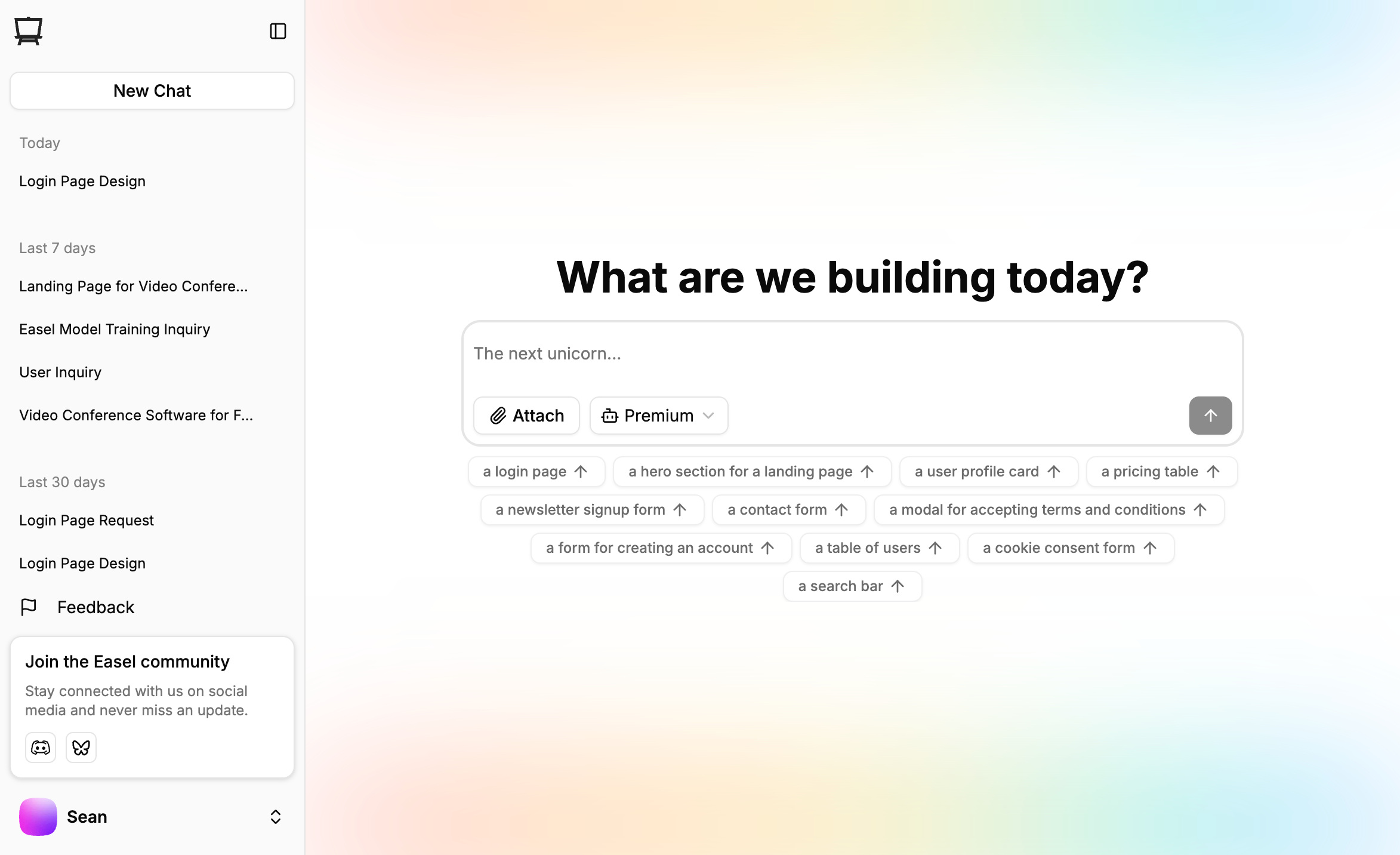
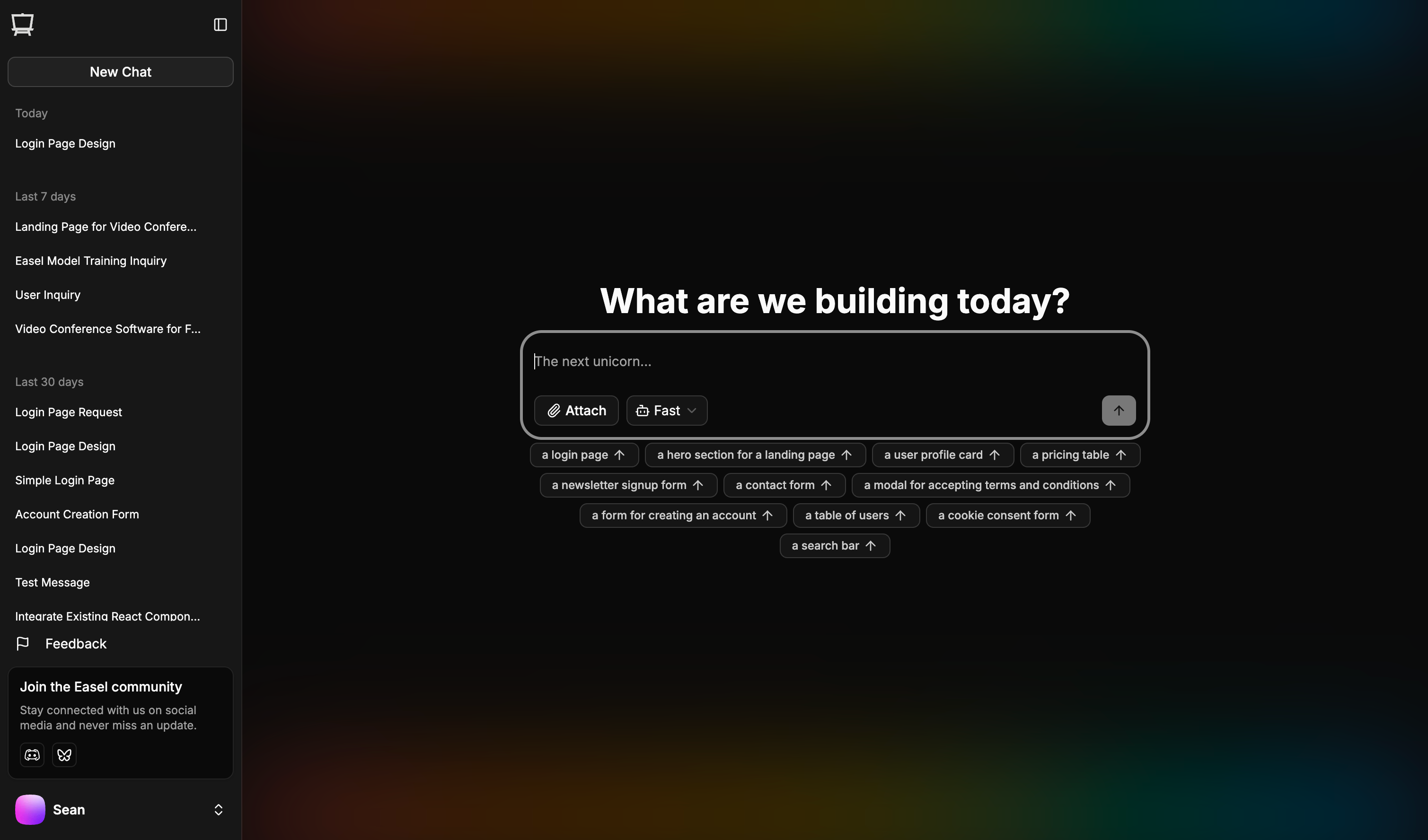 To create a new project:
* Click the **plus (+)** or **New Chat** button in the left sidebar.
* Your previous projects will also appear there.
You can collapse or expand the sidebar by clicking its edge or pressing ⌘+B (Mac) or Ctrl+B (Windows).
To create a new project:
* Click the **plus (+)** or **New Chat** button in the left sidebar.
* Your previous projects will also appear there.
You can collapse or expand the sidebar by clicking its edge or pressing ⌘+B (Mac) or Ctrl+B (Windows).
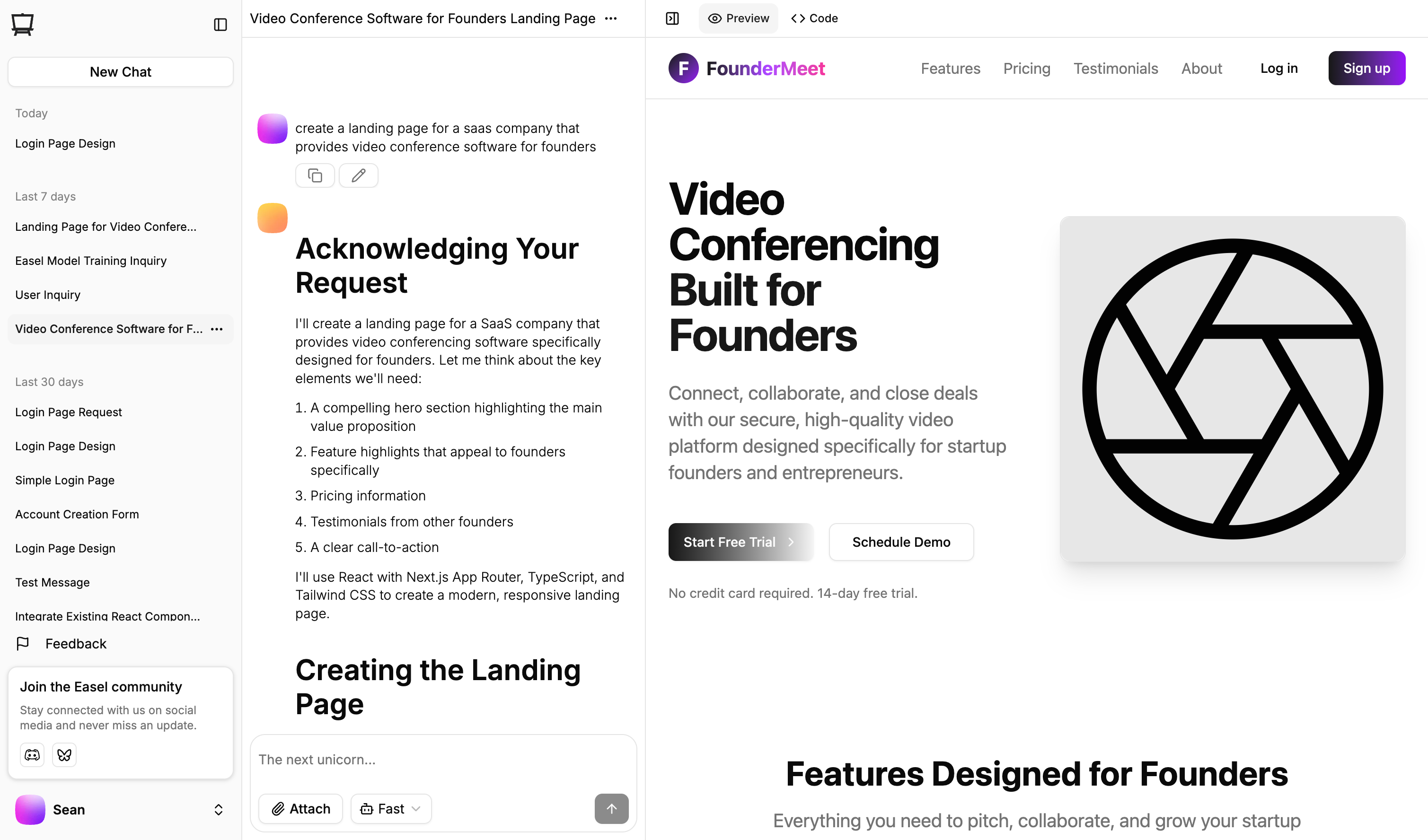
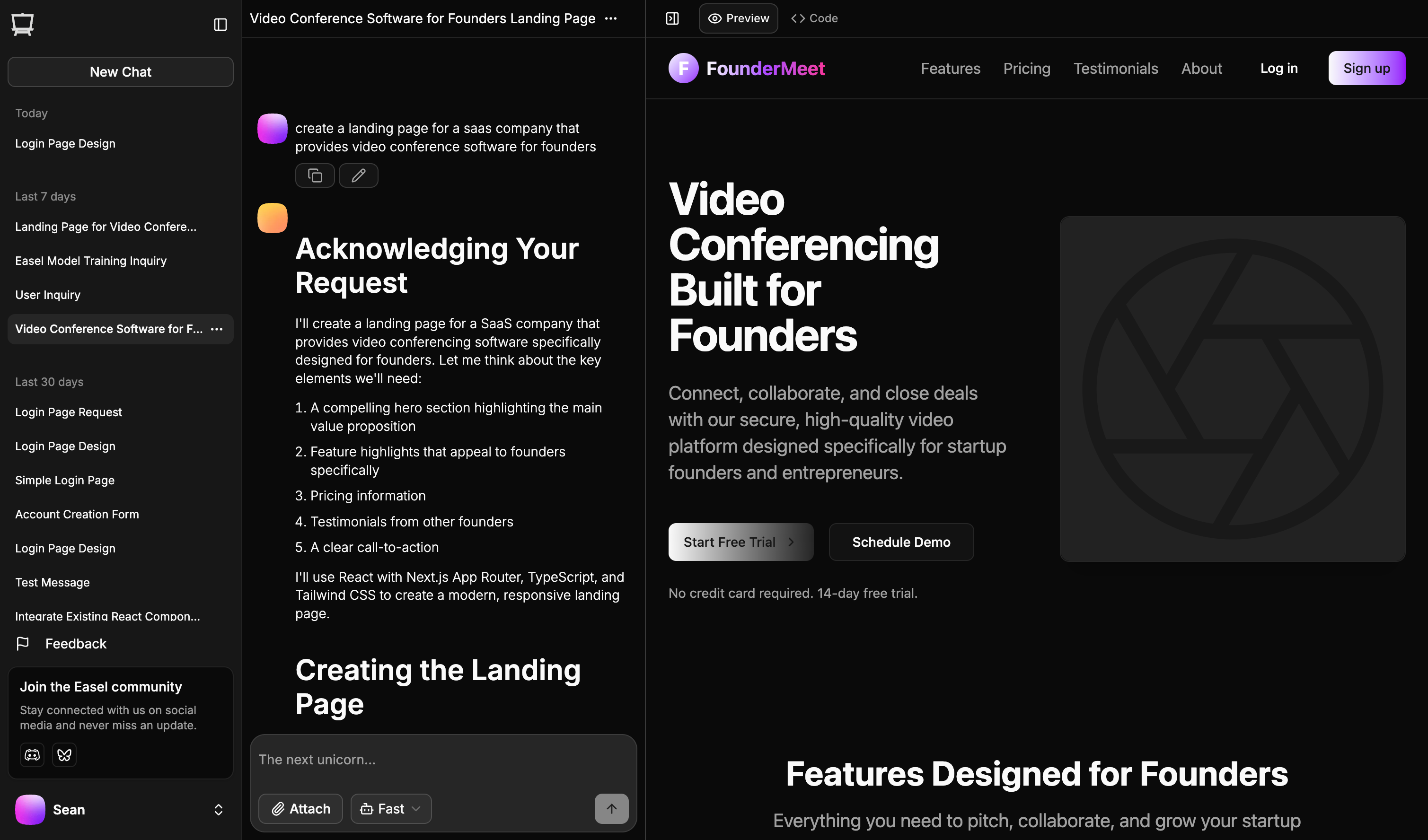 Once inside your project, you'll see:
* the **Chat History** on the left — your prompts and Easel’s responses
* the **Workbench** on the right — live preview and editable code
This is where the magic happens.
## Writing Your First Prompt
The key to great results with Easel is writing a clear, detailed prompt.
Here’s an example of a strong first prompt:
```text theme={null}
Create a landing page for an ultra-modern SaaS product called "FounderMeet":
- The page should include: hero section, features, pricing, and a call to action.
- Use brand colors: #f90f09 and #1a1a1a.
- Design style: modern and clean, similar to Linear or Notion.
- FounderMeet helps startup founders find co-founders via skill-based video matchmaking.
- It should look great on desktop, tablet, and mobile.
```
Feel free to reference websites, color codes, or app behavior — the more context, the better.
## Previewing Your App
Once Easel finishes generating, your preview will appear in the workbench automatically.
It may take a few seconds for the preview to load.\
If it doesn’t appear within 30 seconds, try refreshing the page.
You can continue chatting to update the UI, add logic, or make design changes.
## Making Changes and Adding Features
There are two ways to make changes:
1. Chatting with Easel
2. Editing the code directly
Knowing how to code is helpful, but **not required**. Easel is designed to be easy to use even if you don't have any coding experience.
### Chatting with Easel
In the chat window, you can ask Easel to make changes to the app. The same guidelines apply to chatting as they do to writing prompts:
* Be specific about what you want to change
* Provide as much context as possible
After you make a change, Easel will generate a new preview.
### Editing the code directly
In the workbench, you can edit the code directly. In the workbench header, choose the **Code** tab. Here, you can view all the files in your project, and edit the code in the file you want to change.
## Deploying
Right now, you can:
* **Export your code**
* **Deploy it anywhere** (Vercel, Netlify, your own server)
Built-in one-click Easel deployment is coming soon — including support for custom domains.
***
That’s it — you’ve just built your first Easel app!
Check out the next guide to learn how to add interactivity, data, and more.
Once inside your project, you'll see:
* the **Chat History** on the left — your prompts and Easel’s responses
* the **Workbench** on the right — live preview and editable code
This is where the magic happens.
## Writing Your First Prompt
The key to great results with Easel is writing a clear, detailed prompt.
Here’s an example of a strong first prompt:
```text theme={null}
Create a landing page for an ultra-modern SaaS product called "FounderMeet":
- The page should include: hero section, features, pricing, and a call to action.
- Use brand colors: #f90f09 and #1a1a1a.
- Design style: modern and clean, similar to Linear or Notion.
- FounderMeet helps startup founders find co-founders via skill-based video matchmaking.
- It should look great on desktop, tablet, and mobile.
```
Feel free to reference websites, color codes, or app behavior — the more context, the better.
## Previewing Your App
Once Easel finishes generating, your preview will appear in the workbench automatically.
It may take a few seconds for the preview to load.\
If it doesn’t appear within 30 seconds, try refreshing the page.
You can continue chatting to update the UI, add logic, or make design changes.
## Making Changes and Adding Features
There are two ways to make changes:
1. Chatting with Easel
2. Editing the code directly
Knowing how to code is helpful, but **not required**. Easel is designed to be easy to use even if you don't have any coding experience.
### Chatting with Easel
In the chat window, you can ask Easel to make changes to the app. The same guidelines apply to chatting as they do to writing prompts:
* Be specific about what you want to change
* Provide as much context as possible
After you make a change, Easel will generate a new preview.
### Editing the code directly
In the workbench, you can edit the code directly. In the workbench header, choose the **Code** tab. Here, you can view all the files in your project, and edit the code in the file you want to change.
## Deploying
Right now, you can:
* **Export your code**
* **Deploy it anywhere** (Vercel, Netlify, your own server)
Built-in one-click Easel deployment is coming soon — including support for custom domains.
***
That’s it — you’ve just built your first Easel app!
Check out the next guide to learn how to add interactivity, data, and more.